


Think laptop spec sheets tell the whole story?
They often don’t.
Numbers, model codes, and tiny footnotes hide the difference between a snappy daily driver and an overpriced paperweight.
This guide strips the jargon and shows how to read CPUs, RAM, storage, GPUs, displays, battery figures, and ports in plain terms.
You’ll learn which fields actually affect your day-to-day work, which manufacturer claims to question, and how to avoid costly mismatches.
Bottom line: read the spec sheet like a buyer, not a believer.
Key Laptop Specifications Explained Clearly
Laptop spec sheets cram critical performance details into dense technical shorthand. Every number and model code signals how the machine behaves during everyday work, gaming, or creative projects. Understanding these specs prevents expensive mistakes and helps you match hardware to actual needs instead of marketing promises.
Most spec sheets list the same core components in roughly the same order: processor model and speed, memory capacity and type, storage interface and size, graphics hardware, display dimensions and quality, battery capacity, and ports. Manufacturers sometimes bury important details in footnotes or skip them entirely, so knowing which fields matter most lets you spot gaps and ask the right questions before buying.
The most common fields you’ll see:
CPU model – Processor family, generation, core count, and power class (U/P/H suffix)
RAM – Capacity in gigabytes, type (DDR4/DDR5/LPDDR), speed in MHz, and channel configuration
Storage – Type (NVMe SSD, SATA SSD, HDD), capacity in GB or TB, and PCIe generation
GPU – Integrated or discrete, model name, VRAM amount for dedicated cards
Display size – Diagonal measurement in inches
Resolution – Pixel count (1920×1080, 2560×1440, 3840×2160)
Battery – Capacity in watt-hours (Wh)
Ports – USB-C, USB-A, HDMI, Thunderbolt, SD card reader, headphone jack
Each spec directly affects how smoothly applications launch, how many browser tabs you can run at once, how fast files save, whether games hit playable frame rates, how crisp text appears on screen, and how long you can work unplugged. A laptop with an 8-core CPU, 32 GB dual-channel RAM, a 1 TB NVMe Gen4 SSD, and a dedicated GPU with 8 GB VRAM handles video editing and 1440p gaming far better than a 4-core machine with 8 GB single-channel RAM and integrated graphics. Even if both are marketed as “powerful.”
Understanding CPU Specifications
CPU names follow structured patterns that reveal generation, performance tier, and power consumption. Intel uses formats like “Core i7-13700H” where 13 indicates the generation (13th-gen), 700 indicates the performance tier within that generation, and H signals a high-performance mobile chip designed for gaming or workstation laptops. AMD follows a similar approach: “Ryzen 7 7840U” breaks down to Ryzen 7 (performance tier), 7 (generation), 840 (model tier), and U (ultra-low-power for thin-and-light designs). Suffixes matter. U-series chips typically run 15–28 watts and prioritize battery life, P-series chips run 28–45 watts and balance performance with efficiency, and H-series chips run 35–65+ watts for maximum sustained speed at the cost of heat and battery drain.
Core and thread counts determine how many tasks the CPU can juggle at once. A 4-core/8-thread processor can handle four physical workloads simultaneously, with hyperthreading allowing each core to manage two instruction streams. For basic web browsing and office work, 4 cores suffice. For multitasking across dozens of browser tabs, light photo editing, and background apps, 6–8 cores provide smoother performance. For video rendering, 3D modeling, or code compilation, 12–16 cores cut wait times substantially.
Base clock speeds (often 1.0–3.0 GHz) show the sustained minimum frequency. Boost clocks (3.5–5.0+ GHz) indicate peak single-threaded speed when thermal headroom allows. Higher boost clocks improve snappiness in everyday apps. Higher core counts accelerate parallel workloads.
A stronger CPU matters most for tasks that saturate all available threads: exporting video, compiling software, running virtual machines, or encoding large batches of files. If your work involves mostly typing documents, streaming video, and light web apps, an entry-level 4-core U-series chip delivers adequate responsiveness at lower cost and longer battery life.
How to Evaluate RAM for Real-World Use
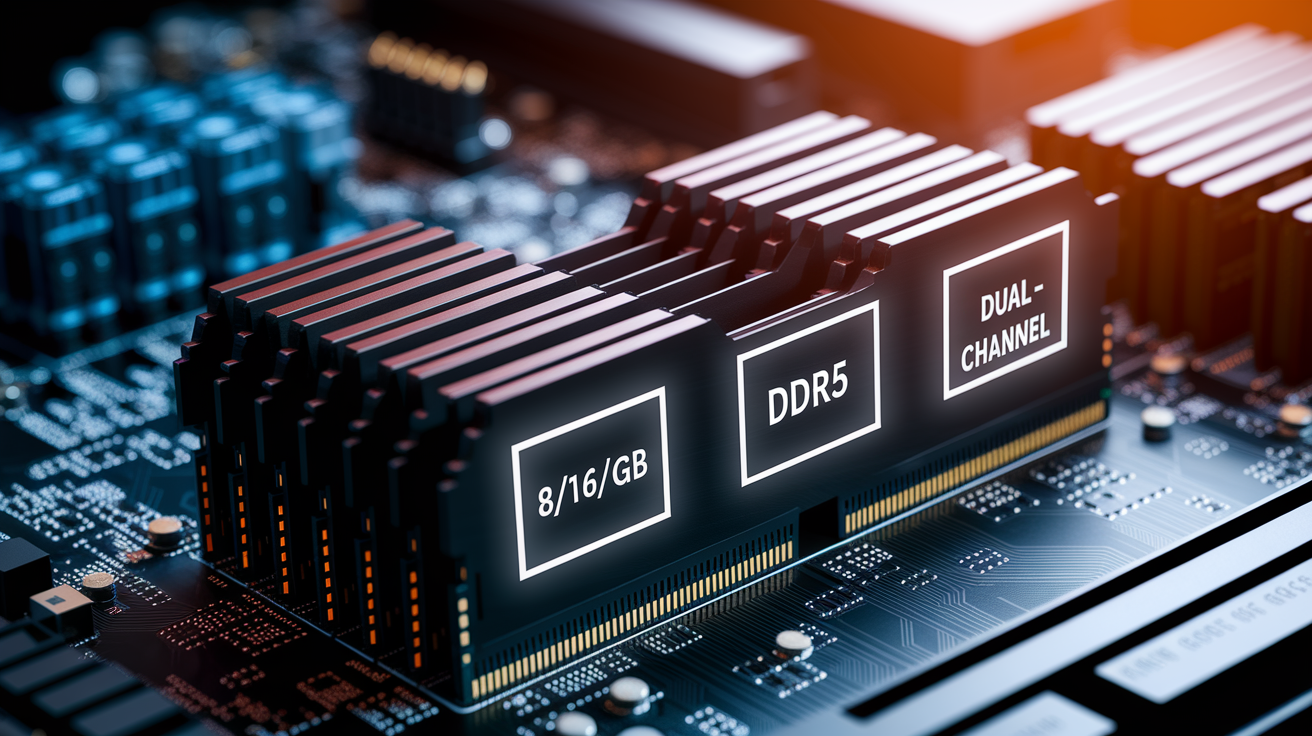
RAM capacity and speed determine how many applications and browser tabs can stay open without slowing down or forcing the system to swap data to the slower storage drive. Spec sheets list RAM in gigabytes (8 GB, 16 GB, 32 GB, 64 GB) and specify the type (DDR4, DDR5, LPDDR4x, or LPDDR5) along with speed ratings like 3200 MHz or 5600 MHz. Faster RAM types and higher speeds reduce latency and improve bandwidth, which benefits integrated graphics and memory-intensive workloads, but the real-world difference between DDR4 and DDR5 is often modest outside specific benchmarks.
4 GB – Barely functional. Only acceptable for web-only Chromebooks or extremely light tasks.
8 GB – Entry-level minimum for general productivity, email, streaming, and casual browsing.
16 GB – Standard recommendation for multitasking, light photo/video editing, and mainstream gaming.
32 GB – Recommended for heavy multitasking, professional video editing, 3D rendering, and running virtual machines.
64 GB+ – Necessary for extreme workloads like large-dataset analysis, high-resolution video compositing, or running multiple VMs simultaneously.
Single-channel configurations (one memory stick) cut available bandwidth in half compared to dual-channel setups (two identical sticks), which can reduce integrated GPU performance by 10–30% and slow down memory-bound applications. If a spec sheet lists “16 GB DDR5” without specifying channel mode, check whether it’s 1×16 GB or 2×8 GB. The latter delivers better performance. Soldered RAM prevents future upgrades, so if the machine ships with 8 GB soldered, you’re locked into that capacity for life.
Storage Types and What They Mean
Storage type determines how quickly the operating system boots, applications launch, and files save. NVMe SSDs using PCIe Gen3 or Gen4 interfaces deliver sequential read speeds of 1,500–7,000+ MB/s, making them the fastest option. SATA SSDs max out around 500–550 MB/s due to interface limitations, still far faster than traditional hard drives. HDDs (5400–7200 RPM) top out at 100–200 MB/s and introduce noticeable lag when loading programs or copying large files, though they remain cheaper per gigabyte for bulk storage. Budget laptops sometimes pair a small SSD (128–256 GB) with a larger HDD, forcing the operating system onto the SSD while games and media fill the slower drive. A compromise that saves cost but hurts everyday responsiveness.
Capacity recommendations depend on usage patterns. A 256 GB drive leaves roughly 210–220 GB usable after the operating system and recovery partition, enough for basic productivity but tight for photo libraries or a handful of modern games (50–150 GB each). A 512 GB SSD provides breathing room for most users who stream media and store files in the cloud. Gamers, photographers, and video editors benefit from 1 TB or larger drives to avoid constant file management.
PCIe Gen4 drives deliver roughly double the sequential speed of Gen3 models, noticeable when transferring massive video files or loading game textures. But less impactful for everyday document work.
Graphics Hardware: Integrated vs Dedicated GPUs
Integrated GPUs sit inside the CPU and share system RAM, consuming 1–2 GB dynamically depending on workload. They handle everyday tasks (web browsing, video playback, productivity apps) without issue and support light gaming at lower settings. Examples include Intel Iris Xe, AMD Radeon Graphics (RDNA 2/3), and Apple’s M-series integrated GPUs. Dedicated GPUs occupy a separate chip with dedicated VRAM (typically 4–16 GB), delivering vastly higher frame rates in games and accelerating tasks like 3D rendering, video encoding, and AI model training.
NVIDIA names its laptop GPUs with a generation number and tier: RTX 4050 (entry), RTX 4060/4070 (mid-range), RTX 4080/4090 (high-end). AMD uses RX 7600M, RX 7700S, RX 7900M, and similar naming. Higher numbers within the same generation indicate more performance, but comparing across generations requires checking benchmarks. An RTX 4060 outperforms an older RTX 3070, but the margin varies by workload.
VRAM capacity matters for high-resolution gaming and large creative projects. 4 GB suffices for 1080p medium settings, 6–8 GB handles 1080p high or 1440p medium, and 10–16 GB supports 1440p ultra or 4K rendering.
GPU power matters if you play current games, edit 4K video with GPU-accelerated effects, run 3D modeling software, or train machine learning models. For office work, streaming, and web development, integrated graphics save cost, weight, heat, and battery life without sacrificing usability.
Display Specifications and Their Impact
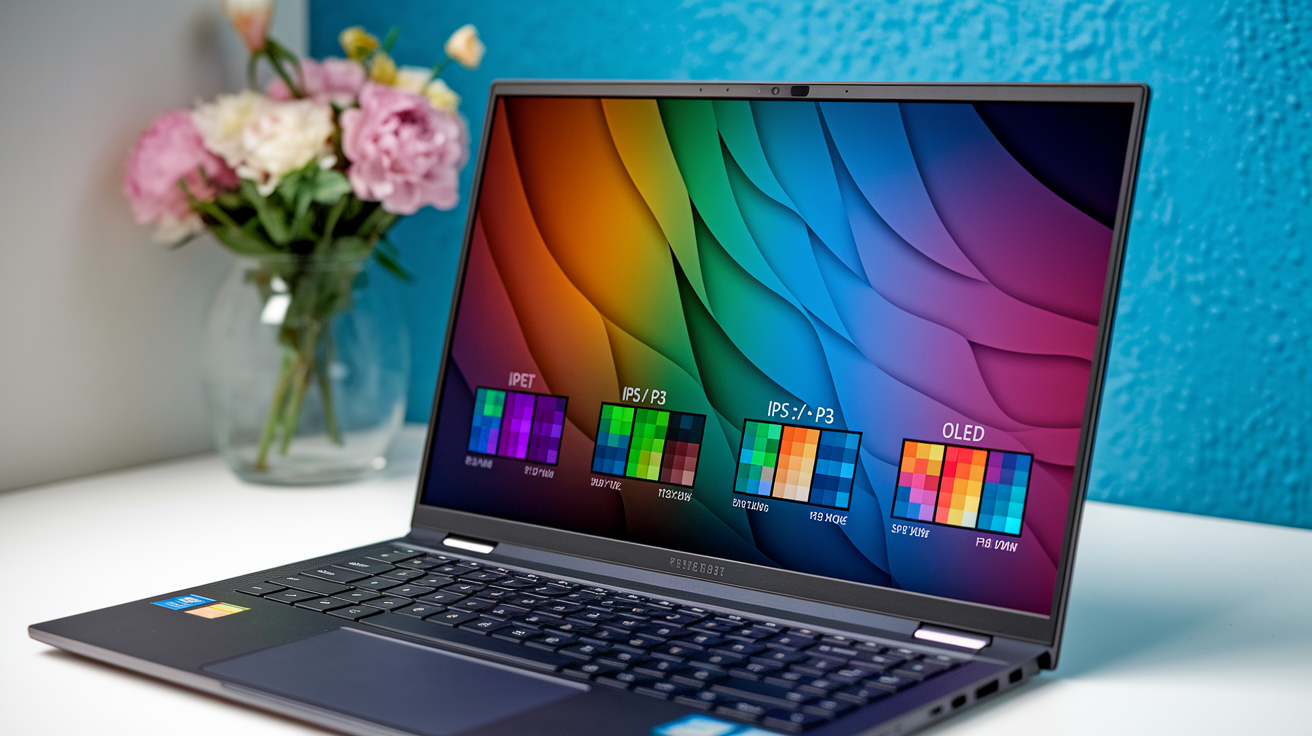
Display specs include size (measured diagonally in inches), resolution (pixel count), brightness (measured in nits), color accuracy (expressed as percentage of sRGB or DCI-P3 color space coverage), and refresh rate (Hertz). A 15.6-inch 1920×1080 display offers 141 pixels per inch, sharp enough for most tasks. Higher resolutions (2560×1440 or 3840×2160) pack more detail, useful for photo editing and design work, but demand more GPU power and reduce battery life. Brightness ranges from 250 nits (dim in bright rooms) to 500+ nits (comfortable outdoors). 300–400 nits suits most indoor use.
Panel types determine viewing angles, color reproduction, and contrast:
IPS – Wide viewing angles, accurate colors, good for productivity and creative work
OLED – Deep blacks, vibrant colors, excellent contrast, risk of burn-in over years of static content
TN – Narrow viewing angles, washed-out colors, low cost, mostly obsolete except in ultra-budget models
Touchscreen – Adds direct input, increases weight and cost, reduces battery life slightly due to extra digitizer layer
Refresh rates above 60 Hz reduce motion blur and improve smoothness. A 120 Hz or 144 Hz display makes scrolling and window animations feel more responsive even in productivity apps. 240–360 Hz panels primarily benefit competitive gamers who need every millisecond of input-to-display latency minimized. If you don’t play fast-paced games, paying extra for high refresh rates delivers diminishing returns compared to investing in better color accuracy or brightness.
Additional Specs: Battery, Ports, Build, and Connectivity
Battery capacity appears in watt-hours (Wh), ranging from 40 Wh in ultraportable laptops to 99.9 Wh in performance machines (the legal maximum for air travel without special approval). Larger batteries enable longer runtime, but actual battery life depends on CPU power draw, display brightness, GPU activity, and workload intensity. A 50 Wh battery in a low-power U-series laptop may last 8–12 hours of light web browsing, while the same capacity in a gaming laptop with a discrete GPU might deliver only 3–4 hours under load. Manufacturer claims often cite “up to X hours” measured at minimal brightness with idle workloads. Real-world usage typically falls 20–40% short of those figures.
Port selection determines peripheral compatibility and expansion options. USB-C ports increasingly handle charging, data transfer, and video output through a single connector. Thunderbolt 4 (Intel) and USB4 support 40 Gbps transfer speeds, external GPU enclosures, and daisy-chaining multiple 4K displays. USB-A (the traditional rectangular port) persists on many laptops for legacy device support. HDMI outputs connect to monitors and TVs. HDMI 2.1 supports 4K at 120 Hz, while HDMI 2.0 caps at 4K 60 Hz. SD or microSD card readers matter for photographers transferring images from cameras. Headphone jacks remain common but disappear on some ultra-thin models.
Wireless connectivity standards dictate network speed and latency. Wi‑Fi 6 (802.11ax) delivers faster speeds and better performance in crowded networks compared to older Wi‑Fi 5. Wi‑Fi 6E adds access to the 6 GHz band for even less congestion. Bluetooth 5.2 or 5.3 improves range and reliability for wireless peripherals. Ethernet ports (RJ45) appear mostly on larger laptops. Thin models require USB-C or Thunderbolt adapters for wired networking.
How to Compare Two Laptop Spec Sheets
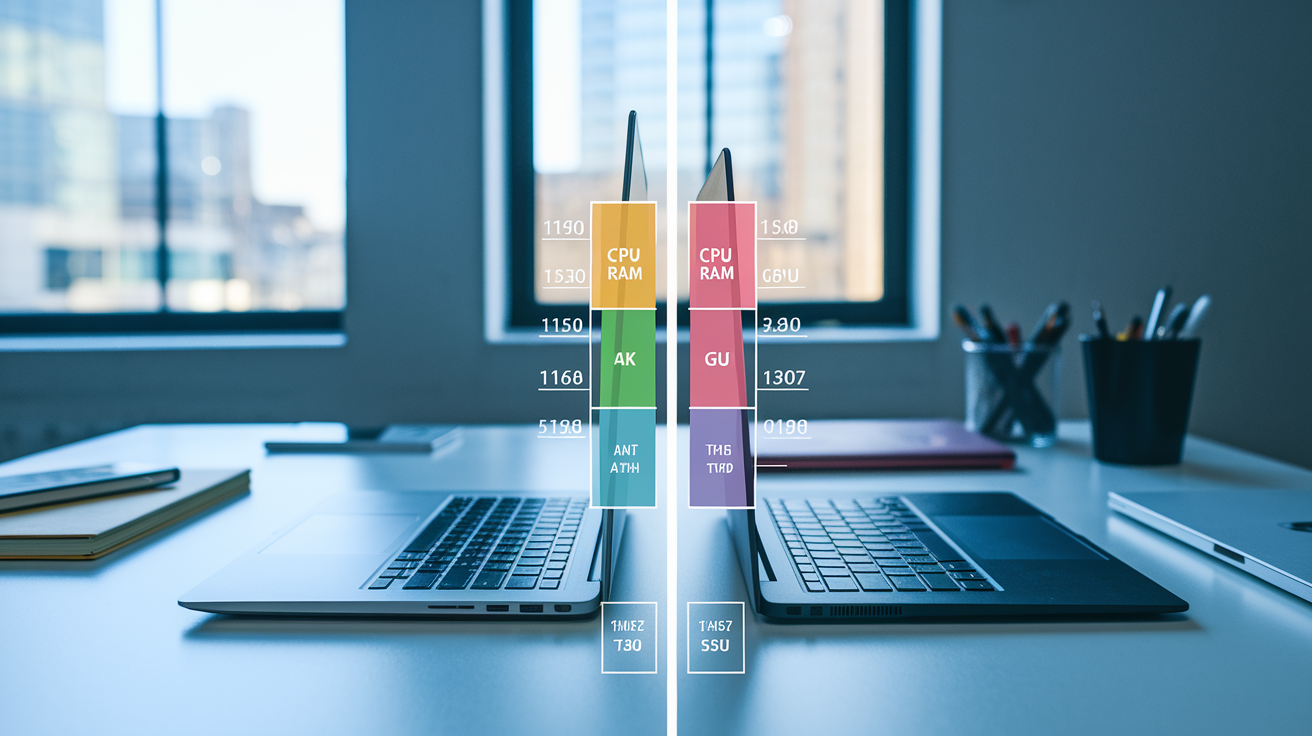
Placing two spec sheets side by side reveals which machine offers better value for your workload and budget. Differences in CPU generation, RAM configuration, storage speed, or GPU tier often explain hundreds of dollars in price gaps, but not all upgrades deliver proportional real-world gains. A laptop with a last-generation CPU, dual-channel RAM, and a fast NVMe SSD may outperform a newer model with a single-channel RAM configuration and a SATA SSD, despite the newer CPU on paper.
-
Compare CPU generation and core count. Check if both use the same architecture generation. A one-generation gap is acceptable, two or more means the older chip may lack efficiency and features.
-
Verify RAM capacity and channel mode. 16 GB dual-channel beats 16 GB single-channel. 8 GB dual-channel often matches or exceeds 16 GB single-channel in GPU-bound tasks.
-
Check storage interface and capacity. NVMe Gen4 provides faster load times than Gen3, but both vastly outpace SATA. Prioritize capacity if speeds are similar.
-
Identify GPU class and VRAM. Compare benchmark scores (3DMark, game frame rates) rather than model names alone. 6 GB VRAM at 1080p may match 8 GB performance, but 4 GB chokes on modern titles.
-
Evaluate display resolution, brightness, and refresh rate. Higher resolution demands more GPU power. 300+ nits brightness improves usability in varied lighting. 120+ Hz refresh benefits gamers and power users.
-
Compare battery capacity and weight. Larger batteries add weight. Check Wh ratings and real-world battery tests to see if the trade-off suits your portability needs.
Weigh trade-offs based on your primary use case. If gaming is the goal, prioritize GPU and RAM over battery life. If portability matters most, favor lightweight builds and efficient CPUs over maximum performance. Bottlenecks often hide in secondary specs: a high-end CPU paired with 8 GB single-channel RAM wastes potential, while a mid-tier CPU with 32 GB dual-channel RAM and fast storage delivers smoother multitasking.
Real Example: Breaking Down an Actual Laptop Spec Sheet
Consider a typical mid-range laptop listing as it appears on a manufacturer’s website or retailer product page. The spec block condenses critical performance details into a compact table, requiring translation to understand real-world implications.
| Component | Listed Spec | Meaning |
|---|---|---|
| Processor | Intel Core i7-13650HX (14 cores, 20 threads, up to 4.9 GHz) | 13th-gen high-performance CPU; strong multitasking and single-thread speed; higher power draw and heat |
| Memory | 16 GB DDR5-5600 MHz (2×8 GB) | Dual-channel configuration improves bandwidth; adequate for gaming and light content work; upgradeable if slots available |
| Storage | 512 GB PCIe Gen4 NVMe SSD | Fast boot and load times (5,000–7,000 MB/s reads); mid-capacity sufficient for OS, apps, and moderate game library |
| Graphics | NVIDIA GeForce RTX 4060 Laptop GPU, 8 GB GDDR6 | Mid-tier dedicated GPU; handles 1080p ultra and 1440p medium settings; 8 GB VRAM supports most current games |
| Display | 15.6″ FHD (1920×1080), 165 Hz, IPS, 300 nits | Smooth gaming with high refresh; adequate brightness for indoor use; IPS ensures good viewing angles |
| Battery | 80 Wh | Above-average capacity; expect 4–6 hours mixed use, 2–3 hours gaming; higher than typical gaming laptops |
| Ports | 3× USB-A 3.2, 1× USB-C (Thunderbolt 4), HDMI 2.1, 3.5 mm audio, SD card | Versatile connectivity; Thunderbolt 4 supports fast data, eGPU, and charging; HDMI 2.1 enables 4K@120Hz output |
| Wireless | Wi‑Fi 6E (802.11ax), Bluetooth 5.3 | Latest wireless standards; faster speeds and lower latency on compatible networks; wide peripheral compatibility |
| Weight | 2.3 kg (5.1 lbs) | Portable for a gaming laptop; heavier than ultrabooks but manageable for occasional travel |
| Operating System | Windows 11 Home | Current OS with full app compatibility; Home edition lacks some enterprise features (BitLocker, domain join) |
These specs predict strong 1080p gaming performance at high-to-ultra settings, smooth multitasking across demanding applications, and fast file operations. The 14-core CPU handles background tasks while gaming or streaming without frame drops. The 165 Hz display pairs well with the RTX 4060’s output in competitive shooters and fast-paced games. The 80 Wh battery provides better longevity than typical 50–60 Wh gaming laptops, though expect battery life to drop sharply under GPU load.
Dual-channel DDR5 ensures the CPU and GPU aren’t starved for memory bandwidth. The Gen4 NVMe SSD reduces game load times and application launches. Thunderbolt 4 enables future expansion via external GPUs or high-speed storage arrays. Weight and thermals remain the trade-off. At 2.3 kg, this machine suits desk use and occasional portability but won’t replace an ultrabook for all-day carry.
Final Words
We went straight into the spec sheet, explaining CPU labels, cores/threads, RAM types and amounts, SSD vs HDD, integrated vs dedicated GPUs, display terms, battery Wh, and ports — plus a practical comparison process and a worked example.
That knowledge helps you spot real bottlenecks and match a laptop to tasks instead of trusting marketing copy. Use the numbered steps and quick checks when shortlisting.
If you want a simple rule of thumb for how to interpret hardware spec sheets for new laptops: prioritize CPU generation, RAM, and storage speed first. You’ll pick better options, faster.
FAQ
Q: How do I read my laptop specs?
A: Reading and describing laptop specs means checking the CPU model/class, RAM amount and type, storage type and size, GPU, display resolution/size/refresh rate, battery watt‑hours, and ports, then noting how each affects performance.
Q: What is a good spec for a laptop?
A: A good laptop spec depends on use: 8–16GB RAM and an SSD for everyday tasks; 16GB+, a mid‑range to high CPU, and a dedicated GPU for gaming or creative work; 32GB+ for heavy multitasking.
Q: Which series is best in laptops, H or U or P?
A: Choosing between H, U, or P series depends on needs: H-series favors peak performance and higher power (gaming/heavy tasks), U-series emphasizes efficiency and battery life, P-series balances performance for professional workloads.