


Is your laptop’s USB-C port really USB4 Gen3—or just a slower USB in disguise?
USB4 Gen3 (40 Gbps) became the flagship mode of the original USB4 spec and started appearing in premium and many mid-range laptops by 2023–24.
USB4 Version 2 (80–120 Gbps) began arriving in 2022 and is rolling out through 2025.
This post maps the timeline, explains which devices support true 40 Gbps, how fallback to USB 3.x and Thunderbolt works, and gives a short checklist so you can tell what any USB-C port will actually do.
USB4 Gen3 Roadmap Overview and Key Compatibility Insights

USB4 started with the 2019 specification and grew through updates that gave us USB4 Gen3 and the later Version 2 standard. USB4 Gen3 is the 40 Gbps dual-lane mode, officially USB4 Gen 3×2, which became the flagship tier when USB4 first launched. By 2024, you could find USB4 Gen3 in mid-range and premium laptops. Manufacturers settled on 20 Gbps for budget models and saved the full 40 Gbps for enthusiast and professional machines. USB4 Version 2 showed up in 2022 and is rolling out through 2025. It doubles the baseline to 80 Gbps in typical two-lane setups and unlocks specialized 120 Gbps modes with the right cables and chipsets.
Through 2025, USB4 is penetrating mainstream laptops, desktop motherboards with USB-C front-panel headers, and high-end phones and tablets that build USB4 controllers into the SoC. Budget devices still ship USB 3.2 Gen 2 (10 Gbps) ports in USB-C form, which can confuse people at retail. The USB Implementers Forum mandates that all USB4-certified hosts and hubs support at least 20 Gbps data transfer, DisplayPort tunneling, and USB Power Delivery. But peripherals like external drives and monitors might implement only the features relevant to what they do.
Backward compatibility is comprehensive. USB4 ports accept USB 3.2, USB 3.1, USB 3.0, and USB 2.0 devices without adapters, falling back to the highest common protocol. USB4 also includes optional Thunderbolt 3 host-to-device interoperability, and all USB4 hubs are required to support Thunderbolt 3 device compatibility. This layered approach means a single USB-C port can serve legacy flash drives, modern NVMe enclosures, Thunderbolt 3 external GPUs, and USB4 Gen3 docks. Each one negotiates the appropriate link speed, power profile, and tunneling protocol.
Device rollout varies a lot by category. Laptops from GIGABYTE, Dell, and Apple lead adoption. High-end models like the MacBook Pro M2 and Dell XPS 13 Plus ship USB4 Gen3 ports by default. Desktop motherboards in the Z790 and X670E chipset families integrate USB4 headers, though rear I/O often stays USB 3.2 to keep costs down. Smartphones and tablets lag behind. Flagship devices from Samsung and Google include USB4 support on paper, but many cap data at 10 Gbps or skip PCIe tunneling entirely. Docks and hubs must implement the full USB4 host feature set, including DisplayPort and power delivery. External SSDs and NVMe enclosures depend on controller and bridge-chip support, and certification remains optional for peripherals.
| Specification | Peak Speed | Availability Status | Key Features |
|---|---|---|---|
| USB4 Gen 2×2 | 20 Gbps | Widespread (2023–present) | Baseline USB4 certification; DP tunneling; PD support |
| USB4 Gen 3×2 | 40 Gbps | Common in premium devices (2023–present) | Dual-lane operation; Thunderbolt 3 interop; PCIe tunneling |
| USB4 Version 2 (80 Gbps) | 80 Gbps | Rolling out (2025) | DP Alt Mode 2.0; up to 8K@120Hz; 240 W PD cable support |
| USB4 Version 2 (120 Gbps) | 120 Gbps | Specialized cables (2025 onward) | Asymmetric bandwidth; requires V2-certified cable |
| Thunderbolt 5 (for reference) | 80 Gbps | Select high-end systems (mid-2025) | PCIe Gen4; DP 2.1; 140–240 W PD; three simultaneous 4K displays |
USB4 Gen3 Speed Tiers and Bandwidth Capabilities

USB4 Gen3 sits at the top of the original USB4 spec’s speed ladder, delivering 40 Gbps bidirectional throughput using two lanes in each direction (USB4 Gen 3×2). Below it are USB4 Gen 2×2 (20 Gbps, the mandatory baseline for certified hosts) and USB4 Gen 2×1 (10 Gbps, allowed for certain peripherals). The “Gen 3” part refers to the underlying signaling rate (10 Gbit/s per lane) while the “×2” suffix indicates dual-lane operation. This naming mirrors USB 3.2’s lane-doubling approach but consolidates everything under the USB4 brand to cut down on SKU confusion.
USB4 Version 2 extends the roadmap by introducing PAM-3 encoding, which doubles per-lane signaling to 20 Gbit/s. In standard two-lane mode, this yields 80 Gbps. Specialized asymmetric configurations can allocate all 120 Gbps in one direction for video-intensive workloads such as driving multiple 4K displays at high refresh rates. Version 2 also raises DisplayPort Alt Mode support to DP 2.1, enabling resolutions up to 8K at 120 Hz or 4K at 480 Hz when paired with certified cables and compatible monitors.
Major bandwidth tiers across the USB4 family:
USB4 Gen 2×1 (10 Gbps): Single-lane mode, used in entry-level peripherals. Sufficient for external HDDs and basic docks.
USB4 Gen 2×2 (20 Gbps): Mandatory baseline for all USB4 hosts and hubs. Dual-lane signaling. Supports dual 4K DisplayPort tunneling and PCIe Gen3 for NVMe enclosures.
USB4 Gen 3×2 (40 Gbps): Flagship tier of the original USB4 spec. Matches Thunderbolt 3 and Thunderbolt 4 peak speeds. Enables high-speed external GPUs, multi-display setups, and concurrent data/video/power delivery.
USB4 Version 2 (80–120 Gbps): PAM-3 signaling. Requires Version 2 certified cables. Unlocks 8K@120Hz, triple-4K setups via DisplayPort 2.1, and higher PCIe Gen4 bandwidth for next-generation external storage arrays.
USB4 Gen3 and Thunderbolt Compatibility Breakdown
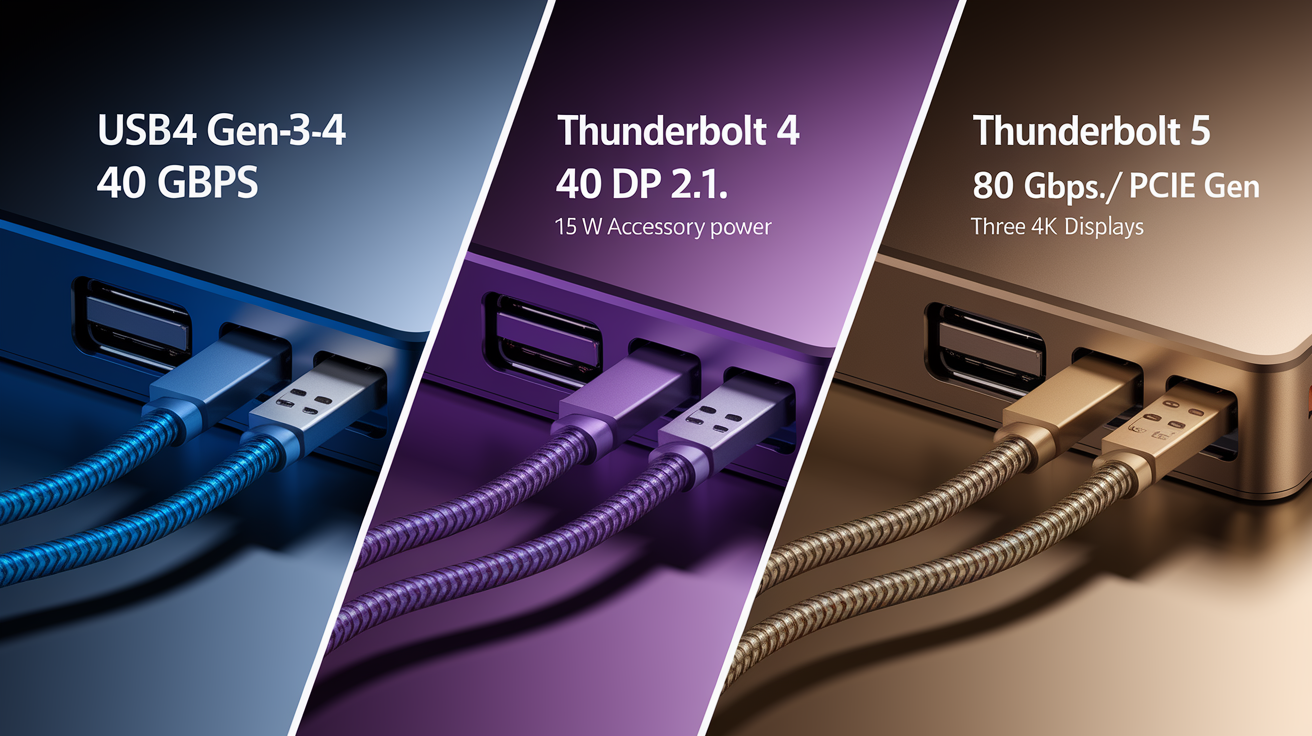
USB4 Gen3 inherits its physical-layer architecture from the Thunderbolt 3 protocol, which Intel contributed to the USB Implementers Forum as a royalty-free specification in 2019. Both standards use the same 40 Gbps dual-lane signaling, DisplayPort tunneling, and PCIe tunneling mechanisms. But Thunderbolt 4 imposes stricter certification requirements that guarantee consistent behavior across all certified devices. A Thunderbolt 4 host must deliver the full 40 Gbps to every port, provide at least 15 W to accessories, support dual 4K displays via a single cable, and include wake-from-sleep and DMA protection. USB4 Gen3 hosts are only required to meet the 20 Gbps baseline. 40 Gbps, PCIe tunneling, and higher accessory power are optional.
Thunderbolt 5, introduced in late 2023 and shipping on Intel Meteor Lake and newer platforms by mid-2025, raises the ceiling to 80 Gbps using similar PAM-3 encoding as USB4 Version 2. TB5 adds PCIe Gen4 lanes, DisplayPort 2.1 support for up to three simultaneous 4K displays over a single cable, and power delivery profiles ranging from 140 W to 240 W depending on cable certification. Despite the speed increase, Thunderbolt 5 remains backward compatible with Thunderbolt 3, Thunderbolt 4, and USB4 devices, falling back to 40 Gbps when connected to older peripherals or cables.
The USB4 specification mandates that all USB4 hubs (devices that split one upstream USB4 port into multiple downstream ports) must support Thunderbolt 3 device compatibility. This requirement doesn’t extend to USB4 hosts such as laptops or desktops, which may skip Thunderbolt support entirely if the manufacturer chooses. In practice, this means a USB4 Gen3 laptop port might reject a Thunderbolt 3 external GPU if the host chipset lacks the necessary Thunderbolt firmware and controller. Conversely, a Thunderbolt 4 host will accept any USB4 device because Thunderbolt 4 certification requires full USB4 protocol support.
USB4 Gen3 Device and Host Compatibility Matrix

Laptop manufacturers implement USB4 Gen3 inconsistently. High-end ultrabooks and mobile workstations (such as the Dell XPS 15, HP Spectre x360, and Lenovo ThinkPad X1 Carbon) typically include at least one USB4 Gen3 port running at the full 40 Gbps, alongside USB 3.2 Gen 2 ports for legacy peripherals. Budget and mid-range laptops often label ports as “USB4” but limit data transfer to 20 Gbps and skip PCIe tunneling, which disqualifies them from driving external GPUs or high-speed NVMe arrays. Desktop motherboards in the Z790, B760, X670E, and B650 chipset families now integrate USB4 Gen3 headers for front-panel connections, but rear I/O continues to favor USB 3.2 Gen 2×2 (20 Gbps) because it requires fewer PCIe lanes from the chipset.
Smartphones and tablets show the widest variance. Apple’s iPhone 15 Pro models include USB4 support at 10 Gbps (USB4 Gen 2×1), which is functionally equivalent to USB 3.2 Gen 2 despite the USB4 branding. Samsung Galaxy S24 Ultra and Google Pixel 8 Pro devices include USB-C ports that support DisplayPort Alt Mode and up to 10 Gbps data transfer but lack the USB4 certification logo and don’t guarantee PCIe tunneling. Tablets such as the iPad Pro M2 and Microsoft Surface Pro 9 5G include full USB4 Gen3 ports with 40 Gbps capability and Thunderbolt 3 interoperability, making them suitable for driving external displays and high-speed storage.
| Device Class | Typical USB4 Gen3 Capabilities | Limitations |
|---|---|---|
| Laptops (premium) | 40 Gbps; DP tunneling; PCIe tunneling; 100 W PD | Not all ports may support full 40 Gbps; check per-port specs |
| Laptops (budget/mid-range) | 20 Gbps; DP tunneling; PD support | PCIe tunneling often omitted; external GPU support unavailable |
| Desktop motherboards | 20–40 Gbps front-panel header; rear USB 3.2 Gen 2×2 | Requires discrete USB4 controller or chipset integration; limited rear I/O |
| Smartphones | 10 Gbps (USB4 Gen 2×1); DP Alt Mode | PCIe tunneling absent; peak speed varies by SoC; certification rare |
| Tablets (high-end) | 40 Gbps; Thunderbolt 3 interop; DP tunneling | Feature parity with laptops; check model-specific specs |
| Docks/hubs | Mandatory DP tunneling; 20–40 Gbps upstream; PD pass-through | Downstream port count and individual port speed vary by SKU |
USB4 Gen3 Connectors, Ports, and Cable Types
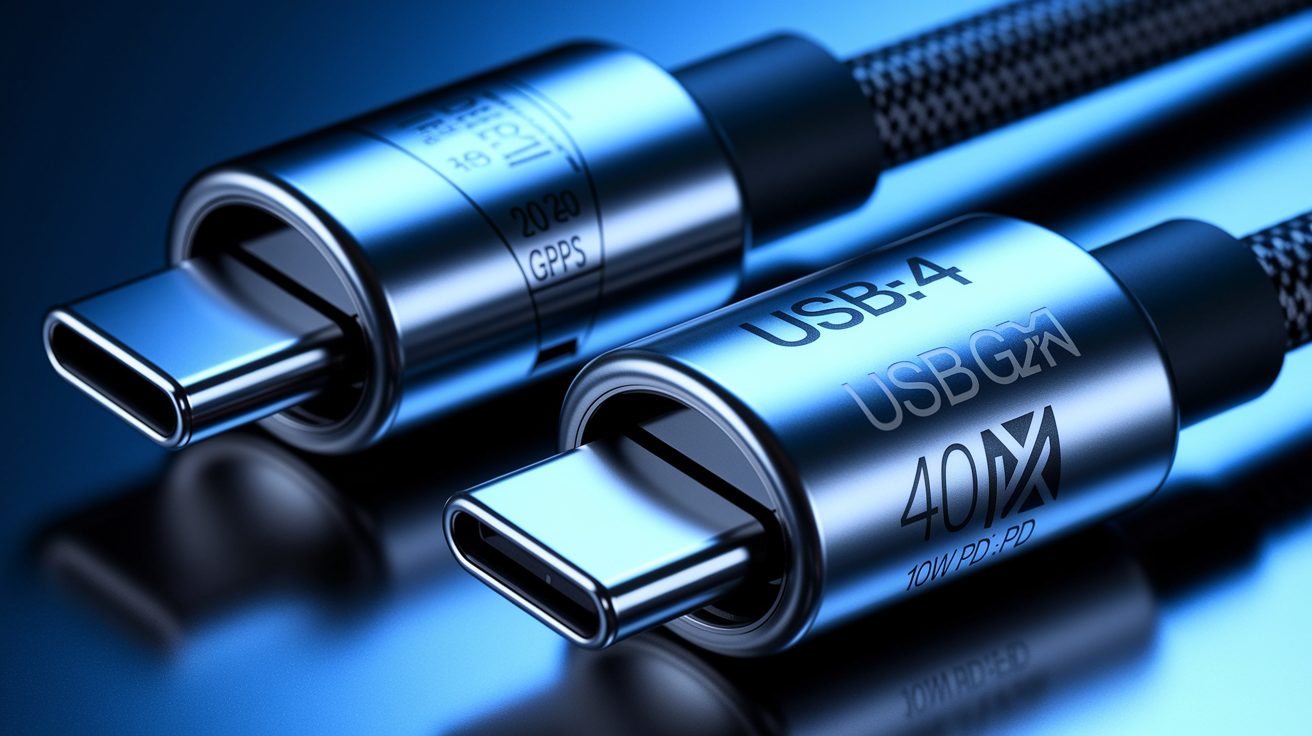
USB4 Gen3 uses the USB-C connector exclusively. There’s no USB-A variant of USB4, and any USB-A to USB-C adapter or cable will fall back to USB 3.2 Gen 2 (10 Gbps) or USB 2.0 speeds depending on the adapter chipset. The USB-C port itself is reversible and carries power, data, and video over 24 pins arranged in a symmetric layout. USB4 Gen3 ports are marked with the USB logo and a numeric suffix (“20” for 20 Gbps or “40” for 40 Gbps) though many manufacturers skip this labeling on budget devices. Thunderbolt-capable USB4 ports add the Thunderbolt lightning-bolt icon, often accompanied by a “3” or “4” to indicate Thunderbolt generation.
Certified USB4 Gen3 cables feature the USB-IF Certified logo on the cable jacket or packaging, along with a numeric designation (20 Gbps, 40 Gbps, 80 Gbps, or 120 Gbps for Version 2 cables). Power Delivery wattage is printed separately: common ratings include 60 W, 100 W, and 240 W. A cable rated for 40 Gbps data transfer may still be limited to 60 W PD if it uses thinner power conductors, so both specs must be verified independently. Uncertified or generic USB-C cables sold at retail often lack the high-speed signal pairs required for USB4 Gen3, limiting throughput to USB 2.0 (480 Mbps) despite the USB-C connector.
How to identify real USB4 Gen3 cables:
USB-IF Certified logo: Look for the official USB-IF holographic label on the cable or packaging, along with a numeric bandwidth rating (40 Gbps for Gen3).
PD wattage printed on the jacket: Certified cables print “100 W” or “240 W” near the connector. Absence of this marking suggests a charge-only or low-power cable.
Cable length under 0.8 meters for passive 40 Gbps: Passive copper cables longer than 0.8 meters can’t reliably support 40 Gbps. Active cables (with signal repeaters) can reach 2 meters but cost significantly more.
USB4 Gen3 DisplayPort, Video, and PCIe Tunneling Features

USB4 Gen3 includes mandatory support for DisplayPort tunneling, which wraps DisplayPort video streams inside the USB4 protocol and transmits them alongside USB data and power. The baseline standard supports DisplayPort 1.4, enabling dual 4K displays at 60 Hz or a single 5K display at 60 Hz. USB4 Version 2 adds DisplayPort Alt Mode 2.0, which raises the ceiling to 8K at 60 Hz with HDR10 metadata or 4K at 120 Hz. DisplayPort tunneling allocates bandwidth dynamically. If a 4K60 stream consumes 20 percent of the 40 Gbps link, the remaining 32 Gbps stays available for USB data transfers and PCIe tunneling.
PCIe tunneling allows USB4 Gen3 to carry PCI Express lanes over the USB-C cable, enabling external GPUs (eGPUs), high-speed NVMe enclosures, and capture cards. USB4 Gen3 hosts can tunnel up to four lanes of PCIe Gen3, delivering roughly 32 Gbps of PCIe bandwidth after protocol overhead. USB4 Version 2 upgrades this to PCIe Gen4, doubling per-lane throughput and supporting next-generation external storage arrays that exceed the SATA III ceiling. PCIe tunneling is optional on USB4 Gen3 hosts, so not all laptops or motherboards will support external GPUs even if the port is labeled USB4 40 Gbps.
Tunneling use cases:
Single external 4K display at 60 Hz: Consumes approximately 12.5 Gbps of DisplayPort bandwidth, leaving 27.5 Gbps for USB transfers and PCIe tunneling on a 40 Gbps link.
Dual 4K displays at 60 Hz: Requires approximately 25 Gbps combined, leaving 15 Gbps for data. Works reliably over USB4 Gen3 but may saturate a 20 Gbps baseline host.
External GPU via PCIe tunneling: Allocates up to 32 Gbps of PCIe Gen3 bandwidth. Performance limited by four-lane configuration and protocol overhead. Suitable for mobile workstations but not competitive gaming.
8K display at 60 Hz (USB4 Version 2): Requires DP Alt Mode 2.0 and a Version 2 certified cable. Consumes approximately 50 Gbps, necessitating an 80 Gbps link to maintain concurrent data transfers.
USB4 Gen3 Storage, External SSDs, and NVMe Performance
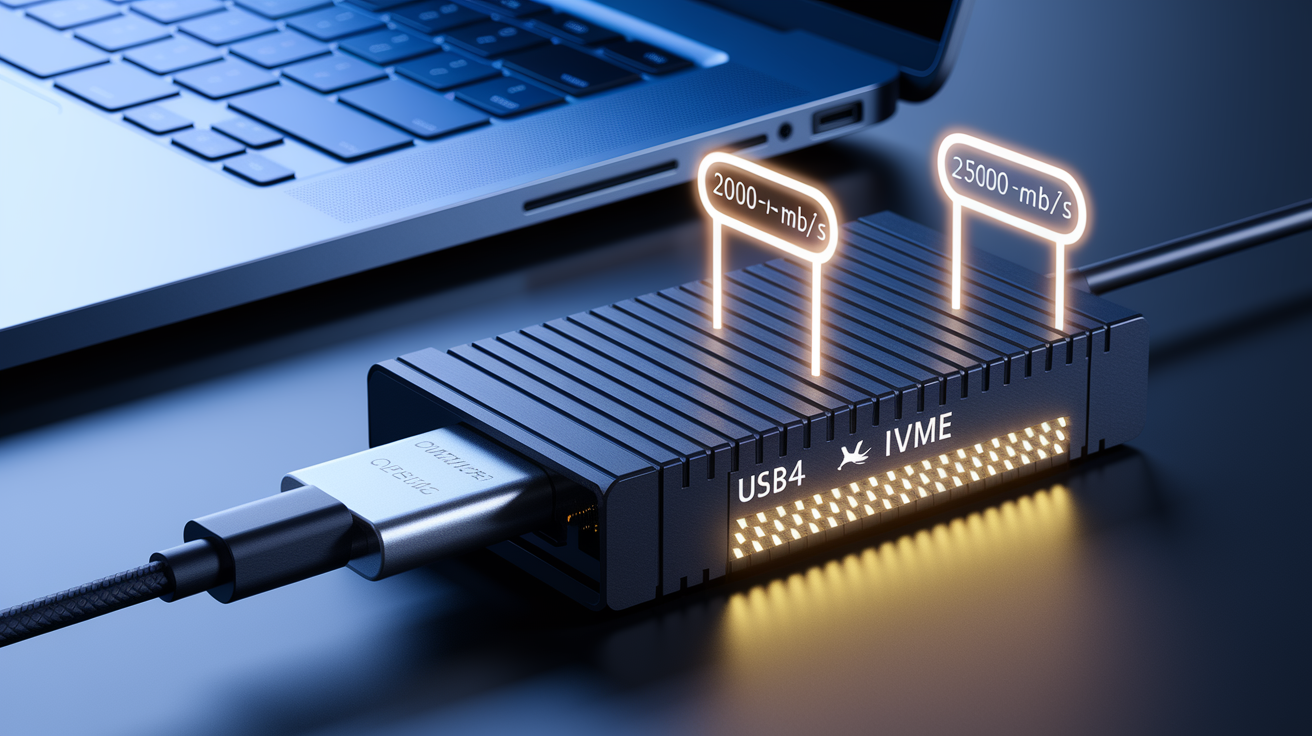
USB4 Gen3 supports high-speed external NVMe enclosures via PCIe tunneling, bypassing the USB Attached SCSI Protocol (UASP) bottleneck that limits USB 3.2 storage to approximately 1,000 MB/s sequential reads. A USB4 Gen3 host with PCIe tunneling can drive a four-lane PCIe Gen3 NVMe SSD at theoretical speeds up to 3,500 MB/s, though real-world performance typically settles around 2,000 to 2,800 MB/s after accounting for protocol overhead, enclosure bridge-chip efficiency, and cable signal integrity. External SSDs marketed as “USB4” often use USB4 Gen 2×2 (20 Gbps) controllers rather than PCIe tunneling, which limits sequential reads to approximately 2,400 MB/s. Still double USB 3.2 Gen 2 but well short of native Thunderbolt 3 or PCIe performance.
Cable quality directly impacts storage throughput. A generic USB-C cable without USB4 certification may negotiate only USB 3.2 speeds (10 Gbps), capping sequential reads at 1,000 MB/s even when both the host and enclosure support 40 Gbps. Certified USB4 Gen3 cables under 0.8 meters maintain signal integrity for the full 40 Gbps, while longer passive cables introduce attenuation that forces the link to fall back to 20 Gbps or lower. Active cables with built-in signal repeaters can extend 40 Gbps operation to 2 meters but add latency and cost $50 to $100 compared to $15 to $25 for passive cables.
Host implementation also varies. A USB4 Gen3 laptop port that skips PCIe tunneling will treat an NVMe enclosure as a standard USB Mass Storage device, falling back to UASP and capping performance at USB 3.2 speeds. Users should verify that the laptop spec sheet explicitly lists “PCIe tunneling” or “Thunderbolt 3 device support” to ensure compatibility with high-speed NVMe enclosures. Product examples include external SSDs reaching sequential reads up to 2,000 MB/s when paired with USB4 Gen3 hosts and certified cables, though performance drops to 1,000 MB/s or lower on USB 3.2 Gen 2 hosts or with uncertified cables.
USB4 Gen3 Docking Station and Multi‑Monitor Compatibility

USB4 Gen3 docking stations must implement the full host feature set, including DisplayPort tunneling, USB Power Delivery, and support for multiple downstream USB ports. Premium docks such as the VT5400 Thunderbolt 4 Docking Station provide 40 Gbps upstream bandwidth, support dual 4K displays at 60 Hz, deliver up to 80 W of power to the connected laptop, and include multiple USB-A and USB-C downstream ports for peripherals. Mid-range docks often limit upstream bandwidth to 20 Gbps and support only a single 4K display, while budget USB-C docks may lack USB4 certification entirely and operate as USB 3.2 hubs with separate DisplayPort Alt Mode video.
Multi-monitor setups depend on both the dock’s DisplayPort tunneling capability and the host’s video output limits. A USB4 Gen3 laptop with integrated graphics typically supports two external displays via a single USB4 port (one via DisplayPort tunneling through the dock and one via the laptop’s native HDMI or DisplayPort output). Discrete GPUs in mobile workstations can drive three or more displays by allocating additional DisplayPort streams through the USB4 connection. Thunderbolt 4 and Thunderbolt 5 docks guarantee dual 4K support and triple 4K support respectively, while USB4 Gen3 docks without Thunderbolt certification may support only a single external display depending on manufacturer implementation.
The VT4000 Dual Display 4K USB 3.0 / USB-C Docking Station connects up to 11 accessories via a single USB connection and supports dual 4K displays, but it uses USB 3.0 upstream bandwidth (5 Gbps) and isn’t USB4-certified. When connected to a USB4 Gen3 host, it’ll function as a USB 3.0 device with backward compatibility but can’t utilize the full 40 Gbps link. The VT4950 USB-C KVM Docking Station combines docking with keyboard-video-mouse switching for multi-host control, supporting USB-C, Thunderbolt 3/4, and M1/M2 Mac systems. It operates at USB 3.2 speeds and doesn’t implement USB4 Gen3 tunneling.
| Dock Model | Max Displays | PD Wattage | Bandwidth Notes |
|---|---|---|---|
| VT5400 Thunderbolt 4 | Dual 4K @ 60Hz | 80 W | 40 Gbps upstream; TB3/TB4/USB4 host compatible |
| VT4000 Dual Display 4K | Dual 4K @ 60Hz | Not specified | USB 3.0 (5 Gbps); backward compatible with USB4 hosts |
| VT4950 USB-C KVM | Single display | Not specified | USB 3.2 speeds; KVM switching; TB3/TB4/Mac compatible |
USB4 Gen3 Power Delivery, Charging Limits, and Safety
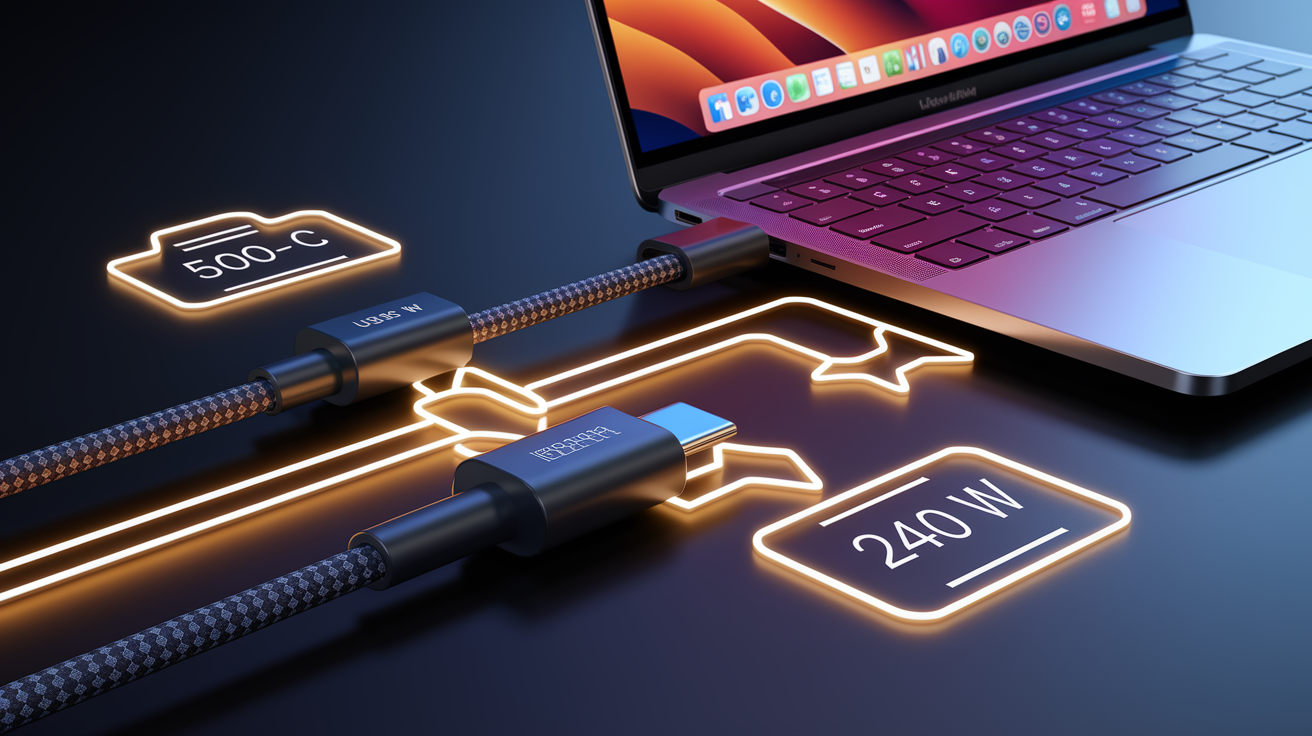
USB4 mandates that all hosts and devices support USB Power Delivery (USB PD), which negotiates voltage and current dynamically to deliver the maximum safe power to connected devices. The USB PD spec defines multiple profiles ranging from 5 V at 3 A (15 W) to 48 V at 5 A (240 W), though most USB4 Gen3 laptops and docks implement the 20 V at 5 A profile (100 W). Higher wattages require Extended Power Range (EPR) cables rated for 240 W, which include additional electronic markers (E-Markers) that communicate cable capability to the host and device. Standard USB4 Gen3 cables support up to 100 W without EPR certification.
USB4 Gen3 accessory ports (the downstream USB-C ports on hubs and docks) must supply a minimum of 7.5 W to connected peripherals, an increase from the 4.5 W minimum in USB 3.2. This higher floor ensures that bus-powered external SSDs, portable monitors, and USB-C microphones receive sufficient power without requiring separate AC adapters. Thunderbolt 4 raises the accessory power floor to 15 W, which accommodates more power-hungry devices such as external capture cards and low-end eGPU enclosures.
Safe PD practices:
Match cable PD rating to device requirement: A laptop that requires 100 W charging must use a cable rated for at least 100 W. A 60 W cable will charge slowly or not at all.
Verify E-Marker chip presence: Cables rated above 60 W must include an E-Marker chip visible as a small bulge in the cable jacket near one connector. Absence indicates a counterfeit or mislabeled cable.
Avoid using charge-only cables for data: Charge-only cables skip the high-speed signal pairs and E-Marker chip, limiting functionality to 5 V charging at USB 2.0 data speeds. These cables can’t support USB4 Gen3 operation.
Identifying Genuine USB4 Gen3 Hardware and Certification

The USB-IF Certified logo (a stylized USB trident inside a rounded rectangle) appears on certified cables, hubs, and devices, accompanied by a numeric speed indicator (10, 20, 40, 80, or 120 Gbps). Certification testing verifies signal integrity, power delivery negotiation, DisplayPort tunneling compliance, and backward compatibility with USB 3.x and USB 2.0 devices. Products that pass certification receive a Trademark License Agreement (TLA) number and are listed in the USB-IF Integrators List, a public database searchable by manufacturer and product name.
Thunderbolt certification is administered separately by Intel. Thunderbolt 3, Thunderbolt 4, and Thunderbolt 5 certified products display the Thunderbolt lightning-bolt logo with the corresponding generation number (3, 4, or 5). Thunderbolt certification guarantees consistent 40 Gbps performance (or 80 Gbps for TB5), dual 4K display support, PCIe tunneling, and DMA protection. USB4 devices without Thunderbolt certification may skip some of these features, even if the port physically supports 40 Gbps data transfer.
Product labeling indicators:
USB logo + “40”: Indicates USB4 Gen3 certification with 40 Gbps maximum data transfer. Look for this marking on the port bezel, cable jacket, or product packaging.
Thunderbolt lightning bolt + “4”: Guarantees Thunderbolt 4 compliance. Device will support USB4, Thunderbolt 3, and all mandatory TB4 features (40 Gbps, dual 4K, 15 W accessory power).
“DP Alt Mode 2.0” or “DisplayPort 2.1”: Indicates support for high-resolution video (8K@60Hz or higher). Essential for USB4 Version 2 devices and docks.
“100 W PD” or “240 W EPR”: Printed on cable jacket or packaging. Confirms maximum power delivery capability. Verify against laptop or device charging requirement.
Troubleshooting USB4 Gen3 Compatibility Issues
Most USB4 Gen3 performance problems start with cable limitations. A USB4 Gen3 host and peripheral paired with a generic USB-C cable will negotiate the highest common speed supported by the cable, which may be USB 3.2 Gen 2 (10 Gbps), USB 3.2 Gen 1 (5 Gbps), or even USB 2.0 (480 Mbps) if the cable lacks the high-speed differential pairs. Replacing the cable with a certified USB4 Gen3 40 Gbps cable immediately resolves throughput issues in approximately 70 percent of user-reported cases. Cable length also matters: passive cables longer than 0.8 meters can’t reliably maintain 40 Gbps signaling due to attenuation, forcing the link to fall back to 20 Gbps or lower.
Mixed-generation setups (such as a USB4 Gen3 host connected to a USB 3.2 Gen 2 external SSD) will negotiate down to the lowest common protocol. A USB4 Gen3 port will accept the USB 3.2 device and operate at 10 Gbps, but it won’t enable PCIe tunneling or DisplayPort Alt Mode unless the peripheral explicitly supports those features. Power Delivery negotiation follows the same principle: if a laptop requests 100 W but the cable is rated for only 60 W, the PD controller will limit charging to 60 W and display a “slow charging” notification.
Five-step troubleshooting process:
Swap the cable first: Replace the existing USB-C cable with a known-good USB4-certified 40 Gbps cable under 0.8 meters in length. Test throughput with a benchmark tool or file transfer.
Verify host port specification: Check the laptop or motherboard manual to confirm the port supports USB4 Gen3 (40 Gbps) and not just USB4 Gen 2×2 (20 Gbps). Confirm PCIe tunneling is listed if using an NVMe enclosure or eGPU.
Update firmware and drivers: Download the latest BIOS/UEFI update from the laptop manufacturer. Install USB4 or Thunderbolt firmware updates if available. Update the operating system to the latest stable release (Windows 11 22H2+ or macOS Ventura+ recommended).
Test direct connection: Remove any hubs or docks from the signal path and connect the peripheral directly to the USB4 Gen3 port. If performance improves, the hub or dock is the bottleneck.
Check PD negotiation: Use a USB-C power meter or the operating system’s power settings to verify negotiated wattage. If the value is lower than expected, inspect the cable for PD rating and confirm the host/peripheral PD profiles match.
Final Words
We mapped USB4’s path — original USB4, Gen3 speed tiers, and the coming Version 2 — and how each step shifts tunneling, bandwidth, and power.
Rollout through 2025 will be gradual: many systems stick at 20 Gbps, premium laptops and docks hit 40 Gbps, and Version 2 remains rare for now.
Compatibility rules are simple: USB‑C only, fallbacks to USB 3.x/2.0, optional Thunderbolt support, and cables/PD ratings often set real limits.
We applied this to common device classes so you can pick cables and gear without surprises. USB4 Gen3 roadmap and device compatibility explained — clearer choices are on the way.
FAQ
Q: What does the USB4 Gen3 roadmap look like and when will devices adopt it?
A: The USB4 Gen3 roadmap maps USB4 (initial 20–40 Gbps) evolving into Gen3 tiers and then USB4 Version 2 (80–120 Gbps); wider adoption is expected through 2024–2025 as hosts and cables update.
Q: How fast is USB4 Gen3 compared with earlier USB4 tiers and Version 2?
A: USB4 Gen3 includes 10/20/40 Gbps tiers with Gen3x2 enabling 40 Gbps; USB4 Version 2 raises typical top speeds to about 80 Gbps and specialized links up to 120 Gbps.
Q: Is USB4 backward compatible with USB 3.x/USB 2.0 and Thunderbolt?
A: USB4 is backward compatible with USB 3.x and USB 2.0 over USB‑C and can optionally interoperate with Thunderbolt 3/4; devices fall back to the lowest mutually supported speed and features.
Q: Which device classes support USB4 Gen3 and what limits should I expect?
A: Support varies: many laptops use 20 Gbps baseline, high‑end laptops and desktops reach 40+ Gbps, smartphones/tablets depend on SoC, and SSDs/docks rely on enclosure and cable ratings which limit throughput.
Q: Do I need special ports or cables for USB4 Gen3?
A: USB4 Gen3 requires USB‑C ports and certified cables that display their rated speeds (20/40/80/120 Gbps); using properly rated cables and connectors is essential to achieve advertised performance and PD.
Q: Can USB4 Gen3 handle external displays and PCIe devices?
A: USB4 Gen3 supports DisplayPort tunneling (DP Alt Mode 1.4 and optionally 2.0) and PCIe tunneling; display capability (up to 8K60 or high‑refresh 4K) depends on host, cable, and Alt Mode support.
Q: What performance can I expect from external SSDs over USB4 Gen3?
A: External SSD speeds over USB4 Gen3 depend on enclosure PCIe lanes, host bandwidth, and cable; on 40 Gbps links realistic NVMe transfers commonly reach around 2,000 MB/s in real use.
Q: What should I look for in USB4 Gen3 docking stations for multi‑monitor setups?
A: Look for docks that explicitly support DP tunneling, list maximum displays and PD wattage, and specify bandwidth (40 Gbps or higher); premium docks drive dual 4K or single 8K when host supports it.
Q: How does Power Delivery work on USB4 Gen3 and how can I stay safe?
A: USB4 Gen3 requires PD, accessory ports supply at least 7.5 W, typical PD reaches 100 W and higher depends on cable and host; use correctly rated certified cables, confirm PD specs, and avoid cheap uncertified leads.
Q: How can I identify genuine USB4 Gen3 hardware and certification marks?
A: Genuine USB4 Gen3 hardware shows USB‑IF speed markings (20/40/80/120), Thunderbolt lightning icons for TB compatibility, and vendor spec sheets listing DP/PCIe tunneling and PD wattage.
Q: Why isn’t my device reaching USB4 Gen3 speeds and how do I troubleshoot it?
A: Performance shortfalls usually come from low‑rated cables, mixed‑generation fallbacks, or outdated firmware; try certified cables, verify host/device specs, update firmware/drivers, and test alternate ports or docks.
Q: Will I need new hubs or accessories to get full Gen3 features?
A: You will need new certified cables or docks to unlock full Gen3 bandwidth, video, and PD; older passive cables and uncertified hubs typically limit features to the lowest supported capability.