
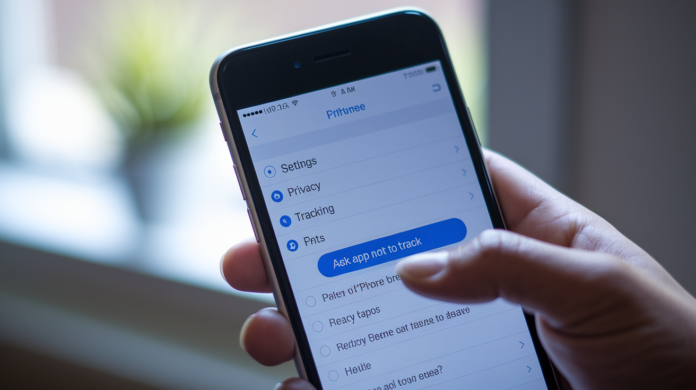

Think flipping one Settings switch makes your iPhone private?
Apple’s App Tracking Transparency moved opt-out to in‑app prompts and added a global toggle that stops apps from accessing the IDFA, the identifier advertisers used to stitch your activity across apps.
This post walks through each opt-out option, shows what those choices actually block (cross-app tracking) and what they don’t (in-app data, account linking), and gives a short checklist to lock down tracking in minutes.
Bottom line: you can cut cross-app profiling, but gaps remain you should watch.
Core User Opt-Out Options After Apple’s Privacy Policy Update
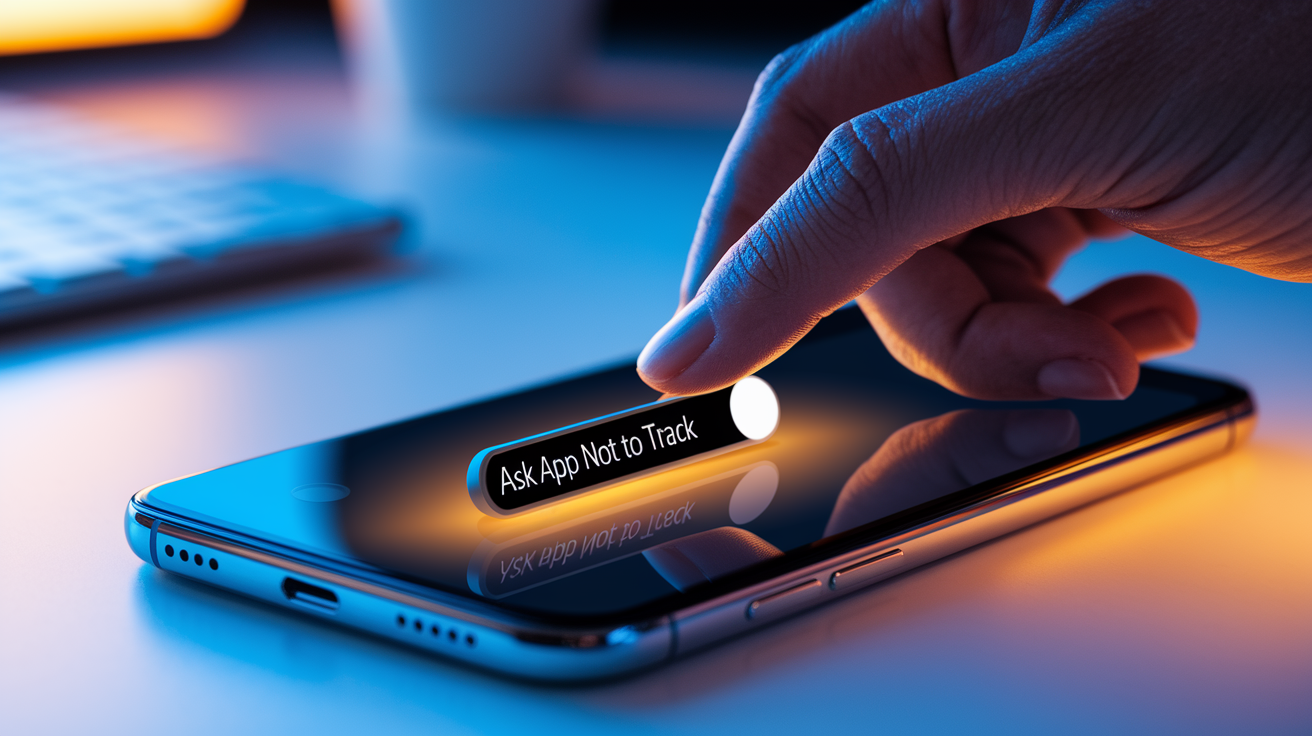
Apple’s App Tracking Transparency framework, enforced with iOS 14.5, moves opt-out controls to the moment an app requests permission instead of hiding them in system preferences. When you open an app that wants to track your activity across other companies’ apps and websites, a prompt shows up asking you to allow or deny permission. The prompt labels the choice clearly: tap “Ask App not to Track” to refuse. Before ATT, most users never knew apps were silently linking their behavior across dozens of platforms to build advertising profiles.
The policy change also introduced a global kill switch that stops apps from even asking. This toggle lives at Settings > Privacy > Tracking, under the label “Allow Apps to Request to Track.” When you turn this setting off, iOS denies all tracking requests automatically and blocks access to the Identifier for Advertising (IDFA), the unique code that advertisers used to connect your activity across apps. Apps that previously relied on the IDFA receive a string of zeros instead, making cross-app profiling impossible without user consent.
Opting out through these controls stops cross-app tracking via the IDFA but doesn’t prevent apps from collecting data within their own boundaries or using other identifiers. Apps can still record what you do inside their interface, link your behavior to an email address or account ID, and share that first-party data with partners. The ATT framework specifically targets the practice of stitching together activity from unrelated apps to create detailed behavioral profiles for ad targeting.
To lock down tracking permissions after updating to iOS 14.5 or later, follow these steps in order:
- Open Settings and go to Privacy.
- Tap Tracking at the top of the Privacy menu.
- Find the toggle labeled “Allow Apps to Request to Track” and turn it off (the switch should be gray, not green).
- Scroll down to see the list of apps that have already requested tracking permission. Any app with a green toggle has been granted permission.
- Turn off the toggle for each app you want to revoke permission from. Apps will lose IDFA access immediately.
- Return to the home screen and open any app you use frequently to check whether a tracking prompt appears. If “Allow Apps to Request to Track” is off, no prompts should surface.
- Repeat this audit every few weeks after installing new apps or updating existing ones, since developers control when prompts appear and may request permission after an app update.
How Apple’s ATT Framework Changes User Opt-Out Choices

App Tracking Transparency replaced an opt-out model that required users to dig through multiple settings menus and understand technical jargon like “Limit Ad Tracking.” Apple announced ATT in June 2020 at WWDC, gave developers six months to prepare, and enforced the requirement in April 2021 with iOS 14.5. The framework mandates that apps display a system-level prompt before accessing the IDFA or using any cross-app tracking methods, shifting the default from implicit consent to explicit user choice at the point of request.
When users decline tracking, advertisers lose the ability to tie activity across apps but can still measure campaign performance using SKAdNetwork, Apple’s privacy-preserving attribution API. SKAdNetwork reports aggregate conversion data without exposing individual user identifiers, so advertisers can see that an ad led to an install or purchase without tracking which specific person completed the action. The trade-off reduces targeting precision but preserves high-level campaign measurement, a compromise Apple designed to balance user privacy with advertiser needs.
| Feature | What It Controls | User Impact |
|---|---|---|
| App Tracking Transparency Prompt | IDFA access and cross-app tracking requests | Tapping “Ask App not to Track” blocks the app from linking your activity to data from other companies’ apps or websites |
| Global “Allow Apps to Request to Track” Toggle | All tracking permission prompts system-wide | Turning this off denies IDFA access to every app automatically and stops prompts from appearing |
| SKAdNetwork | Aggregate attribution reporting without individual identifiers | Advertisers receive campaign performance data in summary form, reducing behavioral profiling while preserving basic measurement |
Post-Opt-Out Permission Hygiene and Ongoing Tracking Review

iOS stores a record of every app that requested tracking permission in the last seven days, visible in Settings > Privacy > Tracking below the global toggle. This list shows app names alongside either a green toggle (permission granted) or a gray toggle (permission denied or never requested). The list updates as new apps request permission, but entries disappear after seven days of inactivity. Apps you installed months ago may not appear unless they recently triggered a prompt or you open the app again.
Revoking previously granted permissions takes one tap per app. Scroll to the app in the Tracking list, tap its toggle to turn it off, and iOS immediately blocks IDFA access for that app. The app doesn’t receive a notification or prompt when permission is revoked, and you can restore access later by toggling it back on. Apps that lose tracking permission mid-session continue running normally but receive a zero-filled IDFA string on the next API call, cutting off cross-app profiling without breaking app functionality.
Developers control when ATT prompts appear. Apps may wait until you complete onboarding, make a purchase, or engage with specific features before requesting tracking permission. This staggered timing is intentional. Apps want to build trust and demonstrate value before asking for data access, similar to how they delay push notification prompts. Check the Tracking list weekly after installing new apps or updating existing ones to catch delayed requests, and review the list before and after major iOS updates when developers often push new builds with ATT implementations.
Common scenarios during ongoing permission maintenance:
Apps granted permission historically. Apps you allowed to track before tightening controls will retain access until you manually revoke it in the Tracking list.
Newly installed apps. Fresh installs inherit the global toggle setting. If “Allow Apps to Request to Track” is off, new apps are denied automatically and never appear in the list.
Delayed prompts. Some apps wait days or weeks after installation to request tracking, timing the prompt to coincide with engagement milestones or feature unlocks.
Apps relying on first-party data. Apps that never request tracking permission may still collect extensive in-app behavioral data tied to your account or email, which ATT doesn’t govern.
Reviewing tracking request history. The seven-day visibility window means you need to check the list regularly to catch and revoke permissions from apps that requested access while you were testing features or distracted by onboarding flows.
Turning Off Personalized Ads and Apple Service-Based Targeting

Apple runs its own advertising network across Apple News, Stocks, and the App Store, using your activity on those services plus purchases of Apple digital content (music, books, TV shows, apps) to target ads. This targeting happens independently of ATT and IDFA. Apple relies on first-party behavioral signals collected within its own ecosystem. The company also introduced a new ad format called Suggested Apps that surfaces in App Store search results and Today tab recommendations, blending editorial content with paid placements based on inferred interests.
To stop Apple from personalizing ads using your behavior, open Settings > Privacy, scroll to the bottom, and tap Apple Advertising. Toggle off “Personalized Ads” to disable targeting across Apple’s ad inventory. When this setting is off, you still see ads in Apple News, Stocks, and the App Store, but those ads are based on contextual signals (the article you’re reading, the app category you’re browsing) rather than your historical behavior or purchase patterns. Apple doesn’t sell this data to third parties, but disabling personalization ensures your activity on Apple services stays disconnected from ad delivery.
| Apple Service | Targeting Method | How to Opt Out |
|---|---|---|
| Apple News | Articles read, topics followed, time spent in sections | Settings > Privacy > Apple Advertising > Turn off “Personalized Ads” |
| Stocks | Watchlist tickers, news articles viewed, market segments tracked | Settings > Privacy > Apple Advertising > Turn off “Personalized Ads” |
| App Store | App downloads, search queries, in-app purchases, content purchases (music, books, TV) | Settings > Privacy > Apple Advertising > Turn off “Personalized Ads” |
| Apple Search Ads | App Store search terms, app category browsing, download history | Settings > Privacy > Apple Advertising > Turn off “Personalized Ads” |
| Suggested Apps (App Store) | Inferred interests from app usage patterns, contextual relevance, editorial curation mixed with paid placements | Settings > Privacy > Apple Advertising > Turn off “Personalized Ads” |
Advanced Opt-Out Options: Safari, Email, DNS, and Device-Level Protections

Safari’s Intelligent Tracking Prevention (ITP) blocks most third-party cookies and limits the lifetime of first-party cookies set by cross-site resources, making it hard for advertisers to track users across websites without explicit consent. ITP runs automatically in Safari on iOS and macOS, using on-device machine learning to classify which domains are trackers based on their behavior patterns. Sites that embed resources across many unrelated domains are flagged and restricted. To verify ITP is active, open Settings > Safari and confirm “Prevent Cross-Site Tracking” is toggled on. This setting has been enabled by default since iOS 11.
Apple Mail on iOS 15 and later includes Mail Privacy Protection, which blocks email tracking pixels by loading remote content through a proxy server that strips out the recipient’s IP address and randomizes load timing. When you open an email, senders receive a generic signal that the message was opened but can’t determine your location, device type, or exact open time, defeating the behavioral profiling tactics that marketers use to score engagement and trigger follow-up campaigns. Enable this by opening Settings > Mail > Privacy Protection and turning on “Protect Mail Activity.” The feature works silently in the background and doesn’t require per-message action.
Content blockers extend Safari’s built-in protections by filtering network requests before pages load, stopping tracker scripts, ad networks, and analytics services from executing. Install a content blocker from the App Store (examples include 1Blocker, AdGuard, or Wipr), then enable it in Settings > Safari > Content Blockers. Unlike browser extensions on desktop, iOS content blockers run as declarative rule lists that Safari processes natively, so they can’t read your browsing data or inject their own tracking. The blocker defines what to block, and Safari enforces the rules without giving the blocker access to your activity.
DNS-level blocking stops tracking domains before they ever reach your device by filtering DNS queries through a server that refuses to resolve addresses for known ad and tracker domains. Configure this on iOS by adding a DNS profile in Settings > General > VPN & Device Management > DNS (tap “Configure DNS” and switch from Automatic to a provider like NextDNS, AdGuard DNS, or Quad9 with filtering enabled). This method works across all apps and browsers, not just Safari, and blocks trackers that bypass cookie restrictions by embedding tracking pixels or making direct API calls to data brokers. It does require trusting a third-party DNS provider with your lookup queries, though.
Reducing Fingerprinting and In-App Data Collection
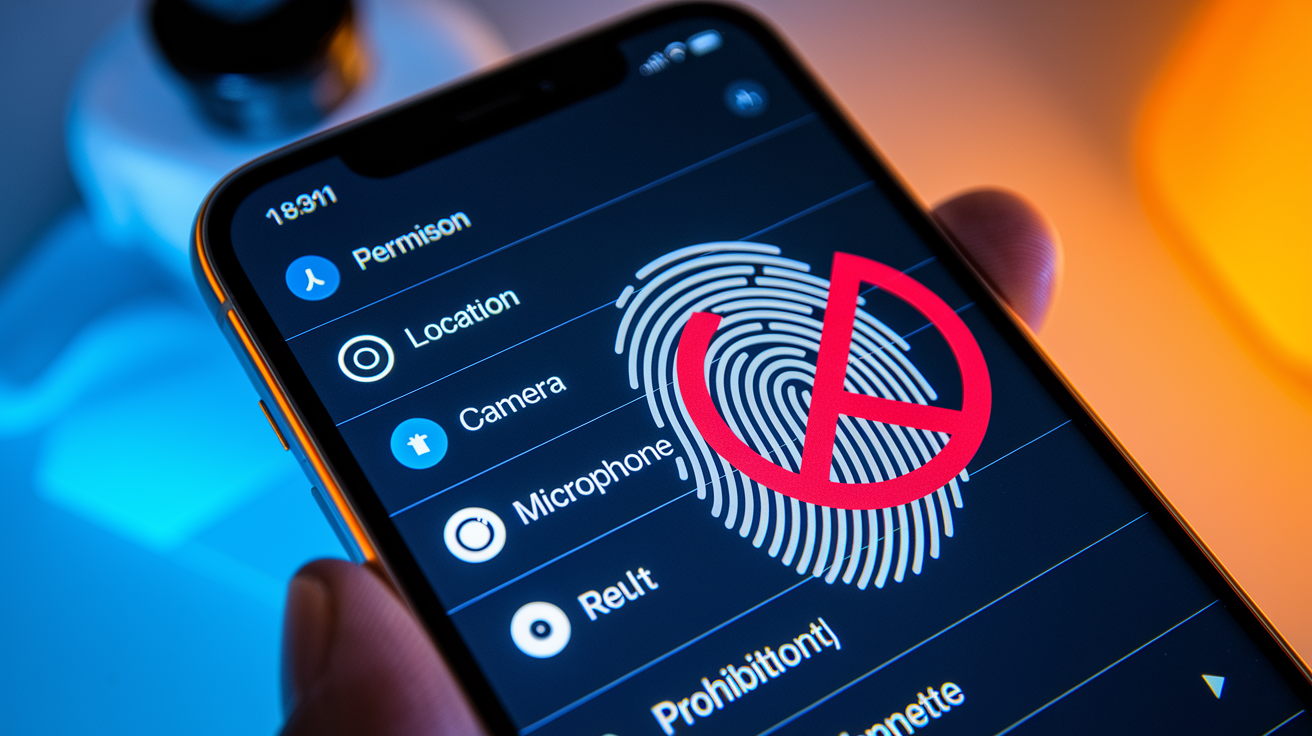
Device fingerprinting reconstructs a unique identifier by combining dozens of device characteristics (screen resolution, installed fonts, available sensors, battery level, network configuration, timezone) into a signature that persists even after users clear cookies or deny tracking permissions. ATT blocks access to the IDFA but doesn’t prevent apps from fingerprinting, and developers can legally collect first-party data within their own apps without restriction. iOS makes some fingerprinting signals harder to access (for example, apps can’t enumerate installed apps or read precise sensor data without permission), but motivated developers can still assemble partial fingerprints using publicly available device properties.
Limiting permissions reduces the signal pool available for fingerprinting and behavioral tracking. Start by auditing location access: open Settings > Privacy > Location Services, scroll through the app list, and set apps to “While Using the App” instead of “Always” unless continuous location is genuinely required. Disable Bluetooth for apps that don’t need device pairing or proximity sensing, since Bluetooth metadata can reveal nearby devices and physical location patterns. Revoke camera and microphone permissions for apps that don’t actively use those inputs. Social media and shopping apps often request these permissions “just in case” but function normally without them.
Reducing data collection at the source limits what apps can infer about your behavior. Turn off background app refresh for apps you use infrequently (Settings > General > Background App Refresh) to stop them from collecting behavioral signals when not in active use. Disable “Allow Apps to Access Your Data” toggles in Settings > Privacy for Contacts, Calendars, Photos, and Reminders unless an app has a clear functional need for that data. The more restrictive your permission set, the less raw material apps have to build profiles or bypass tracking restrictions through indirect inference.
High-risk permissions that expand fingerprinting and tracking surface area:
Always-On Location Access. Continuous location data enables precise movement tracking, location clustering for behavioral insights, and correlation with third-party geolocation datasets.
Bluetooth Permissions. Apps can scan for nearby Bluetooth devices to infer social graphs, store visit frequency, and cross-device proximity without GPS.
Full Photo Library Access. EXIF metadata embedded in photos reveals location history, device models, timestamps, and app usage patterns that supplement fingerprints.
Speech Recognition and Keyboard Access. Custom keyboards and dictation features can log typed content and voice input, creating detailed behavioral profiles independent of IDFA.
Opt-Out Options for Children, Family Groups, and Managed Devices

Child accounts created through Family Sharing automatically restrict tracking permissions, preventing apps from requesting IDFA access or displaying ATT prompts until the child turns 13 (or the relevant age of digital consent in their region). Apple enforces this at the OS level. Apps can’t bypass the restriction by embedding alternative tracking methods or prompting children to toggle settings manually. Parents manage these restrictions through Screen Time controls, which also let them lock down location sharing, purchase permissions, and content ratings across all devices signed into the child’s Apple ID.
Corporate and school-managed devices use Mobile Device Management (MDM) profiles to enforce tracking policies organization-wide. IT administrators can deploy a configuration profile that disables “Allow Apps to Request to Track” globally, blocks access to the Apple Advertising settings, and prevents users from changing privacy toggles without admin credentials. MDM also enables remote auditing of installed apps and permission grants, letting organizations verify that employees or students haven’t granted tracking permissions to non-approved apps or overridden policy restrictions during personal use.
Opt-out controls for child or managed devices:
Family Sharing Child Account Restrictions. Child accounts block ATT prompts and IDFA access automatically. Parents review and approve app installations and in-app purchases before they complete.
Screen Time Privacy Controls. Parents set Content & Privacy Restrictions to lock the Tracking toggle, prevent changes to Location Services, and disable access to Apple Advertising settings on children’s devices.
Ask to Buy for App Permissions. Apps that request tracking or location permissions trigger a parent approval notification before the permission is granted, adding a review gate for sensitive data access.
MDM Configuration Profiles. IT departments deploy device-wide policies that disable tracking requests, enforce DNS filtering, restrict app installation to approved catalogs, and audit permission grants remotely.
Supervised Mode Lockdown. Devices enrolled in Apple School Manager or Apple Business Manager enter Supervised mode, which disables user overrides of privacy policies and prevents removal of MDM profiles without physical device access and admin authentication.
Marketing Push Notifications: User Opt-Out Choices After Apple’s Section 4.5.4 Change

Apple updated App Store Review Guideline section 4.5.4 on October 1, 2020, adding a new requirement that apps “must provide a method in your app for a user to opt out from receiving such messages” when sending promotional or marketing push notifications. The policy already mandated that push couldn’t be required for app functionality and that marketing messages required explicit opt-in consent shown in the app UI, but the update closed a gap where users had to disable all push notifications at the iOS system level to stop marketing streams, losing transactional and account notifications in the process.
Developers now use one of two compliance approaches. The All-Or-Nothing option adds a settings control that links users to the iOS system settings page (Settings > Notifications > [App Name]) where they can disable all push for the app with a single toggle. This approach is simple to build but pushes undecided users toward a blunt opt-out that kills all notification streams, including password resets, delivery updates, and account alerts. The Opt-Down option builds or expands an in-app preference center where users toggle marketing push streams separately from transactional notifications, choose message types and subjects, and set frequency preferences (“We’ll notify you about flash sales but not about new blog posts”).
A preference center reduces full opt-outs by giving users granular control. Include channel selection (push, email, SMS, in-app messages), message type filters (promotions, product updates, content recommendations), and frequency cadence options (real-time, daily digest, weekly summary). Add an explicit “Opt out of marketing push notifications” toggle separate from the iOS system-level permission to comply with section 4.5.4’s language. Some developers use in-app messages as a transitory preference center (one news outlet in 2016 used in-app prompts to let users subscribe to specific state and local political push streams during the election), but this tactic carries risk if the preferences aren’t also exposed in persistent app settings, since Apple reviewers may judge the setup insufficient and reject updates for non-compliance.
What Happens When a User Opts Out
When a user opts out via a preference center, the app should stop sending marketing push to that device token while continuing to deliver transactional or essential notifications that support core app functionality (order confirmations, security alerts, account status changes). If a user opts out at the iOS system level by disabling all notifications for the app, the operating system blocks delivery of all push types, and the app receives a silent failure when attempting to send. No notification appears, and the user isn’t re-prompted to enable push unless they manually revisit Settings. Marketing teams must track opt-out rates separately from system-level permission denials to measure whether preference centers reduce full push disablement compared to the All-Or-Nothing approach.
Full Privacy Audit Checklist for Your iPhone After Apple’s Update

Verifying opt-out settings once isn’t sufficient because new apps install with default permissions, iOS updates reset certain toggles, and developers push app updates that request tracking permissions for the first time. Apple’s enforcement of ATT and privacy labels has been inconsistent. Some major apps delayed implementing prompts for months after iOS 14.5 launched, and app review doesn’t catch every violation before apps reach the App Store. A recurring audit ensures new apps inherit your privacy preferences and that previously trusted apps haven’t changed their data collection practices after updates.
Run a monthly privacy check by opening Settings > Privacy and stepping through each category in order: Location Services, Tracking, Apple Advertising, Contacts, Calendars, Reminders, Photos, Bluetooth, Microphone, Camera, and Health. For each category, scan the app list for unfamiliar names or apps you no longer use, and revoke permissions immediately. Dormant apps with lingering permissions often continue collecting data in the background through refresh cycles or push notification wake events. After revoking permissions, open the app to confirm it still functions as expected. Most apps degrade gracefully by hiding features that require the revoked permission rather than breaking entirely.
Privacy audit actions to repeat regularly:
Verify “Allow Apps to Request to Track” is off in Settings > Privacy > Tracking, and check the list below the toggle for apps that requested permission while the global setting was temporarily on.
Revoke location access for apps that no longer need it, especially retail, travel, and event apps you used once and never opened again.
Turn off “Personalized Ads” in Settings > Privacy > Apple Advertising, then re-check after major iOS updates because some updates reset this toggle to the default enabled state.
Disable Background App Refresh for social media, news, and entertainment apps in Settings > General > Background App Refresh to stop passive data collection when apps aren’t in use.
Review notification permissions in Settings > Notifications, disabling alerts for apps that abuse push with frequent promotional messages or that you no longer actively use.
Check “Allow Apps to Access” toggles in Settings > Privacy for Contacts, Photos, Calendars, Reminders, and Health, revoking access for apps that requested broad permissions during onboarding but don’t use that data for core features.
Audit installed content blockers and DNS profiles in Settings > Safari > Content Blockers and Settings > General > VPN & Device Management > DNS to confirm filtering is active and configurations haven’t expired.
Delete unused apps entirely rather than leaving them installed with permissions revoked, since app binaries can contain tracking SDKs that activate during reinstallation or OS-level background processes.
Final Words
In the action, this guide showed the fast paths: tap “Ask App not to Track,” flip Settings > Privacy > Tracking, and decline tracking prompts when they appear.
We also covered per‑app revokes, turning off Personalized Ads, Safari and Mail defenses, DNS/content blockers, and ways to reduce fingerprinting — plus a compact audit checklist for follow‑up.
Keep this list of user opt out options after apple privacy policy update handy and run the audit now and then. Small steps, steady control.
FAQ
Q: Which iPhones will no longer work in 2027?
A: The iPhones that will no longer work in 2027 are models that rely on legacy cellular tech or can’t run supported iOS; exact models depend on carrier network shutdowns and Apple’s support timelines.
Q: What is the difference between opt in and opt out privacy policy?
A: The difference between opt in and opt out privacy policy is that opt‑in asks for explicit permission before collecting or using personal data, while opt‑out assumes consent unless the user actively declines.
Q: What is the secret iPhone setting everyone should know?
A: The secret iPhone setting everyone should know is “Allow Apps to Request to Track” (Settings > Privacy > Tracking); turning it off prevents apps from asking and blocks IDFA-based cross‑app tracking.
Q: What app is Apple telling customers to delete?
A: The app Apple is telling customers to delete: Apple hasn’t issued a blanket order to delete a specific app; it posts security advisories when apps pose risks—follow Apple Support notices for the recommended action.